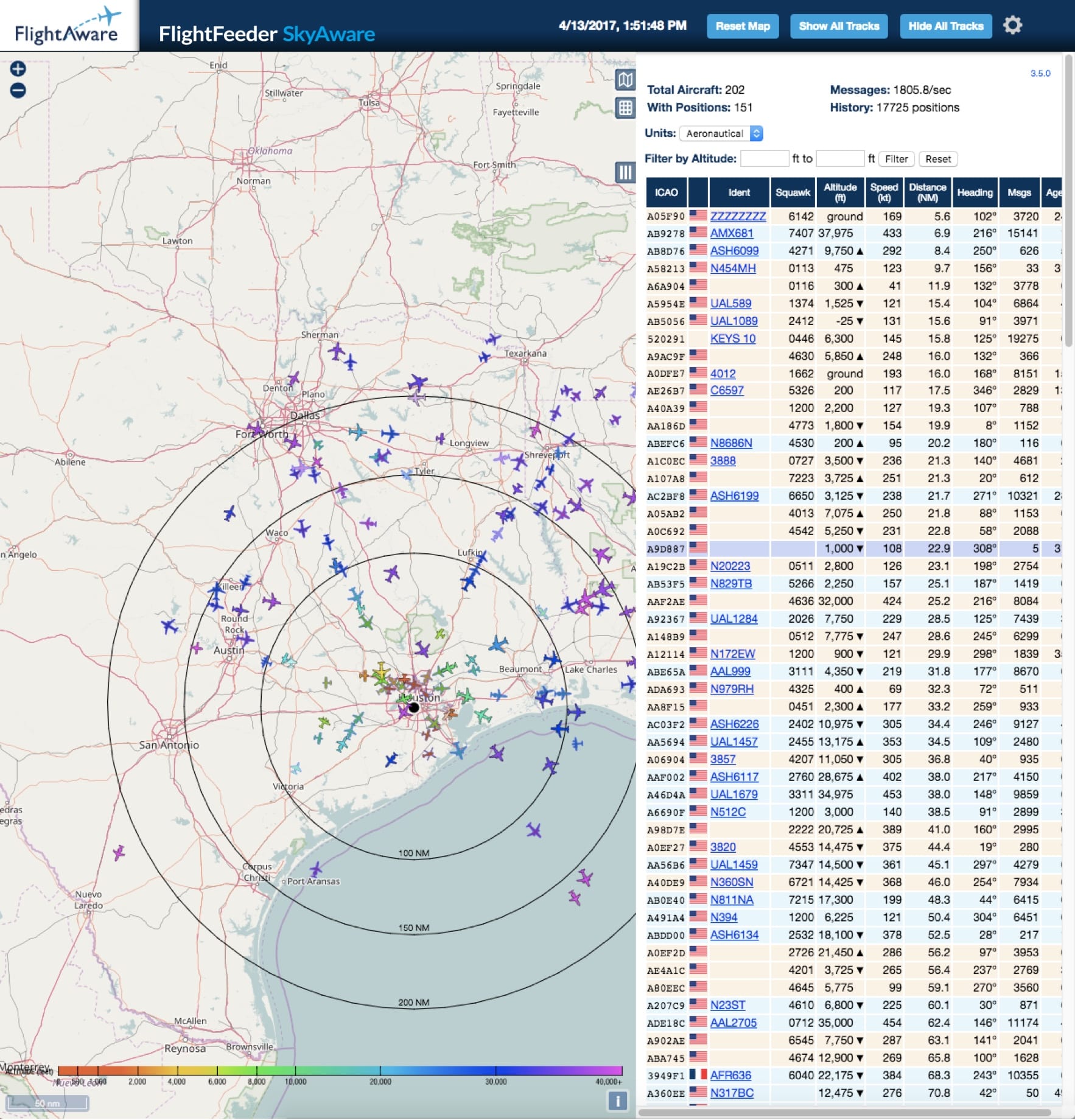
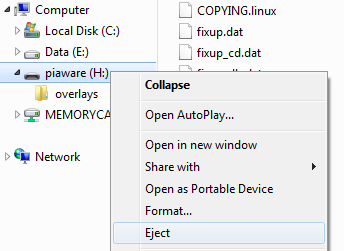
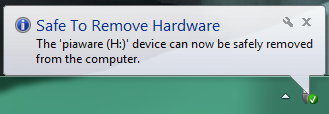
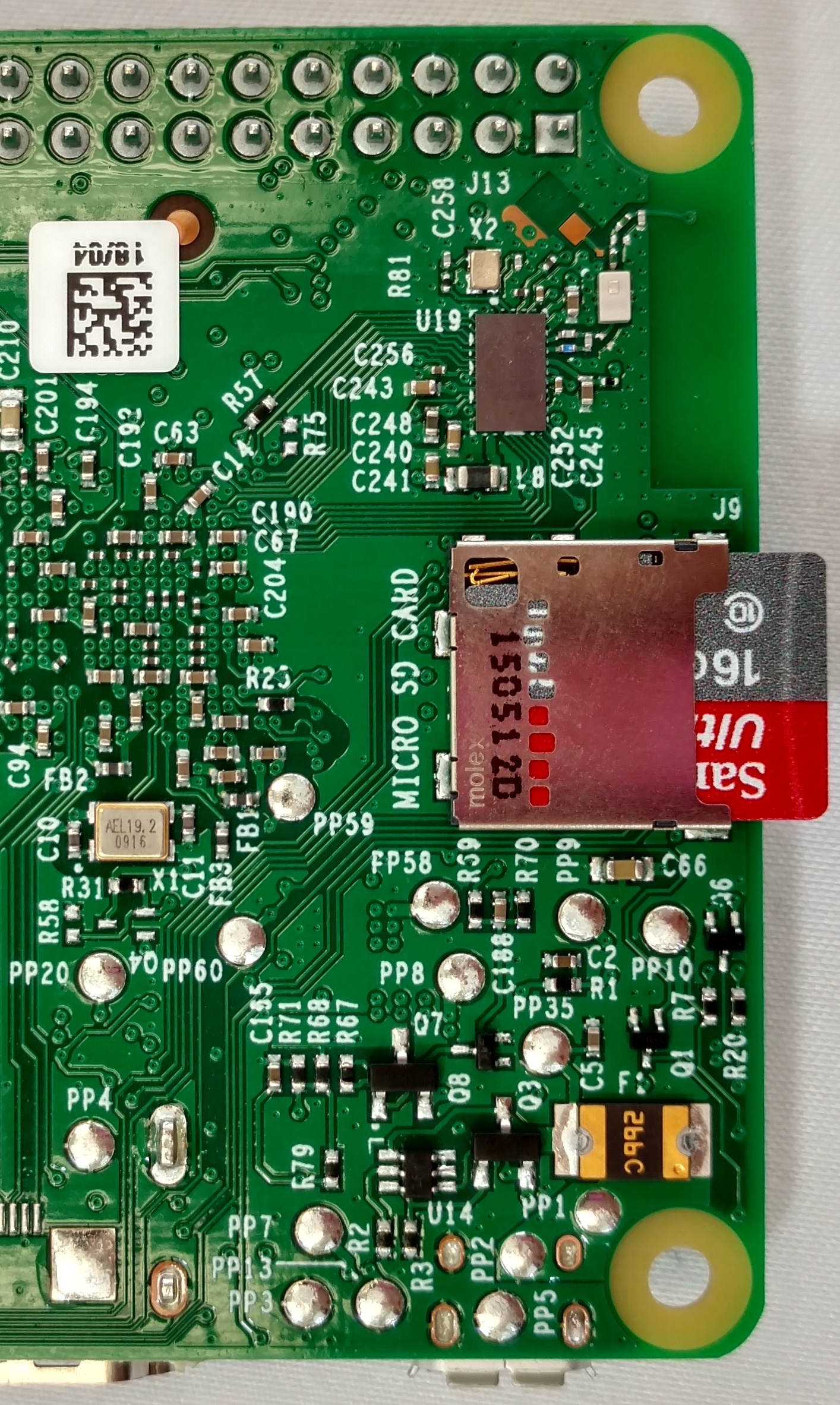
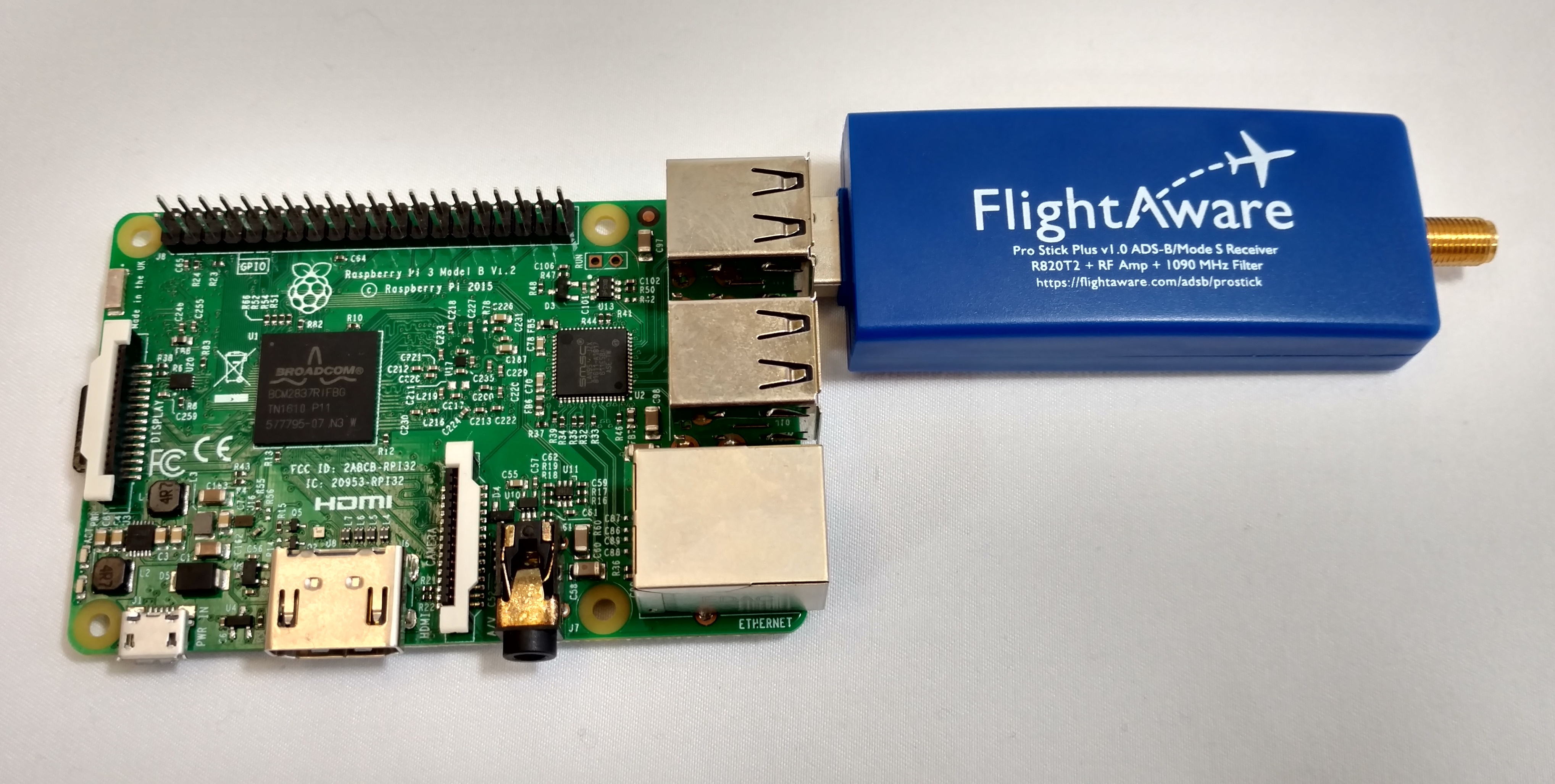
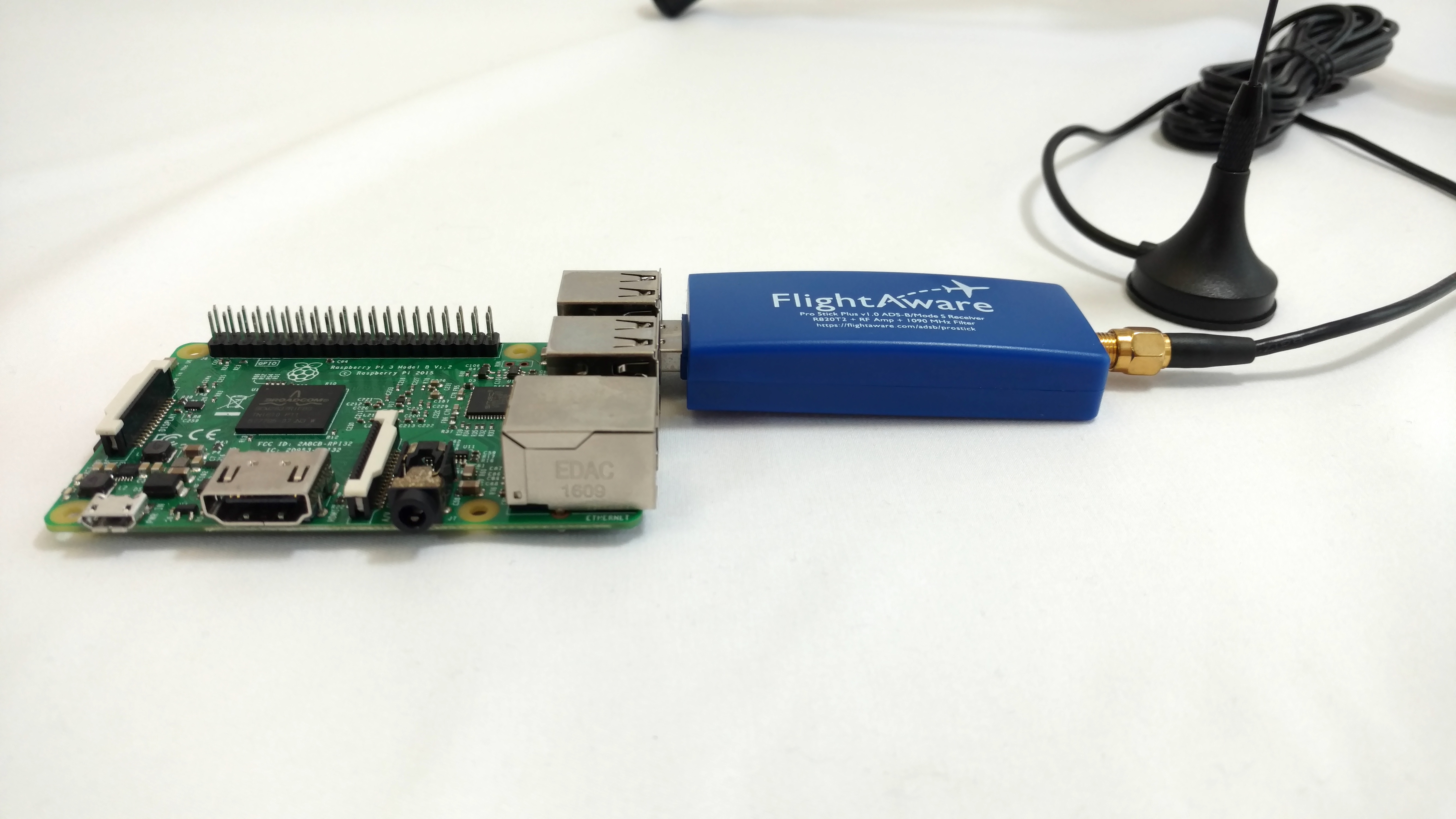
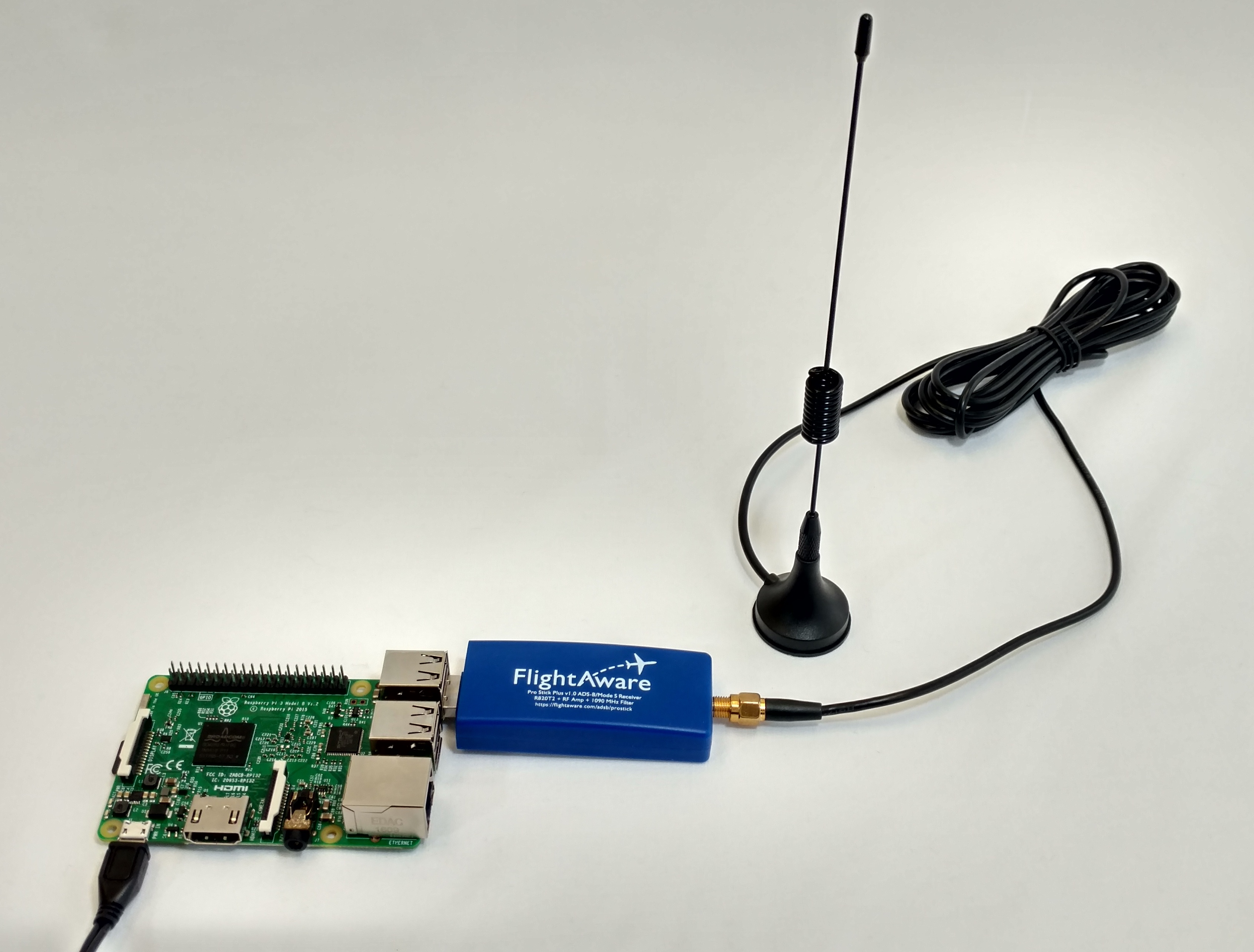
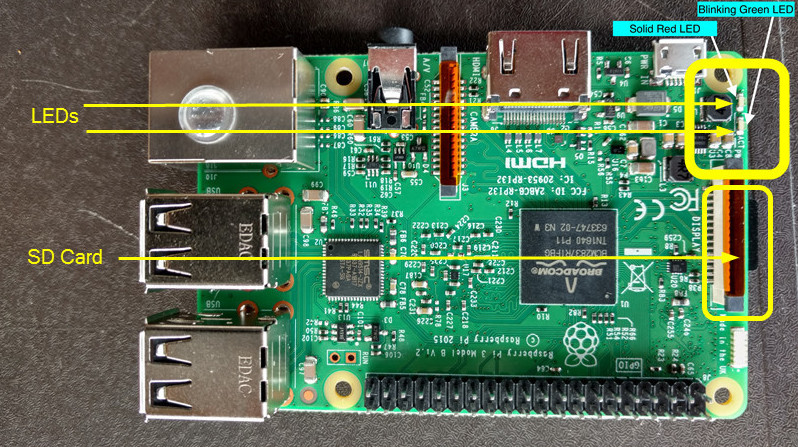
ما إن يصبح الجهاز قيد التشغيل، يرجى:
Option 1
ابحث عن جهاز FlightFeeder، ثم سجله واربطع عبر تقنية البلوتوث باستخدام تطبيق FlightAware على نظام التشغيل iOS، أو باستخدام صفحة تكوين إعدادات FlightAware .
(الرجاء الأخذ في الاعتبار أن وسيلة الاتصال عبر تقنية البلوتوث لن تعمل إلا مع الأجهزة التي تم تثبيت صورة PiAware عليها على بطاقة SD، وليس مع الأجهزة التي تم تثبيت PiAware عليها يدويًا.)
Option 2
سجل جهاز FlightFeeder الخاص بك يدويًا عبر الإنترنت باستخدام عنوان IP لجهاز FlightFeeder.
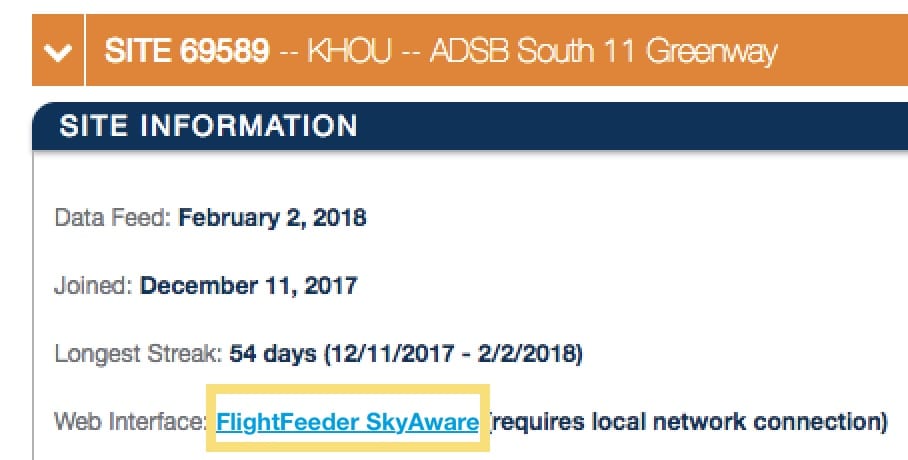
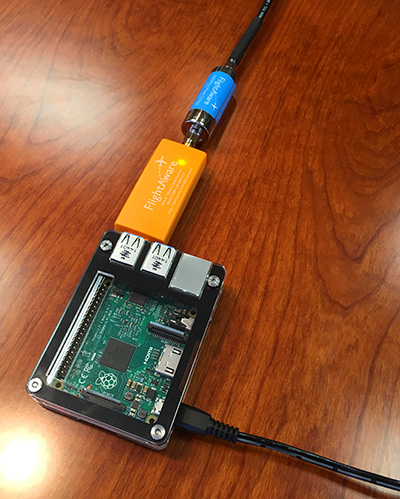
في حالة استخدام شاشة نوع LCD، أو إذا كان بمقدورك توصيل جهاز Raspberry Pi في الشاشة باستخدام كابل HDMI، يمكن العثور على عنوان IP الخاص بجهاز FlightFeeder على شاشة عرض واجهة استخدام PiAware.
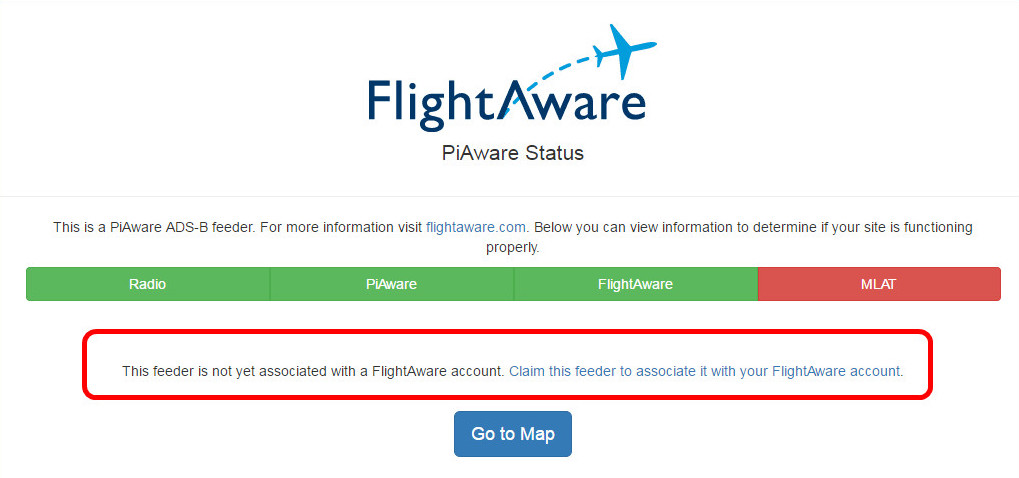
أثناء استخدام جهاز الكمبيوتر الخاص بك، ابحث عن عنوان IP المحلي المخصص لجهاز PiAware لديك من خلال جهاز التوجيه/ جدار الحماية، ثم ابحث عن عنوان IP المخصص في المتصفح الموجود على الشبكة نفسها. إذا لم يتم طلب الحصول على الجهاز بعد، فسيظهر رابط لطلب الحصول على جهاز PiAware.
Option 3
If you have command line access you can get the FlightFeeder's unique ID using the command: With the unique ID for the feeder you can enter it into the end of the URL below in place of the x's:
cat /var/cache/piaware/feeder_id
بالاستعانة بالمعرف الفريد لجهاز البث / جهاز التغذية بالبيانات، يمكنك إدخاله في نهاية الرابط أدناه بدلاً من حرف الـ x:
https://www.flightaware.com/adsb/piaware/claim/xxxxxxxx-xxxx-xxxx-xxxx-xxxxxxxx
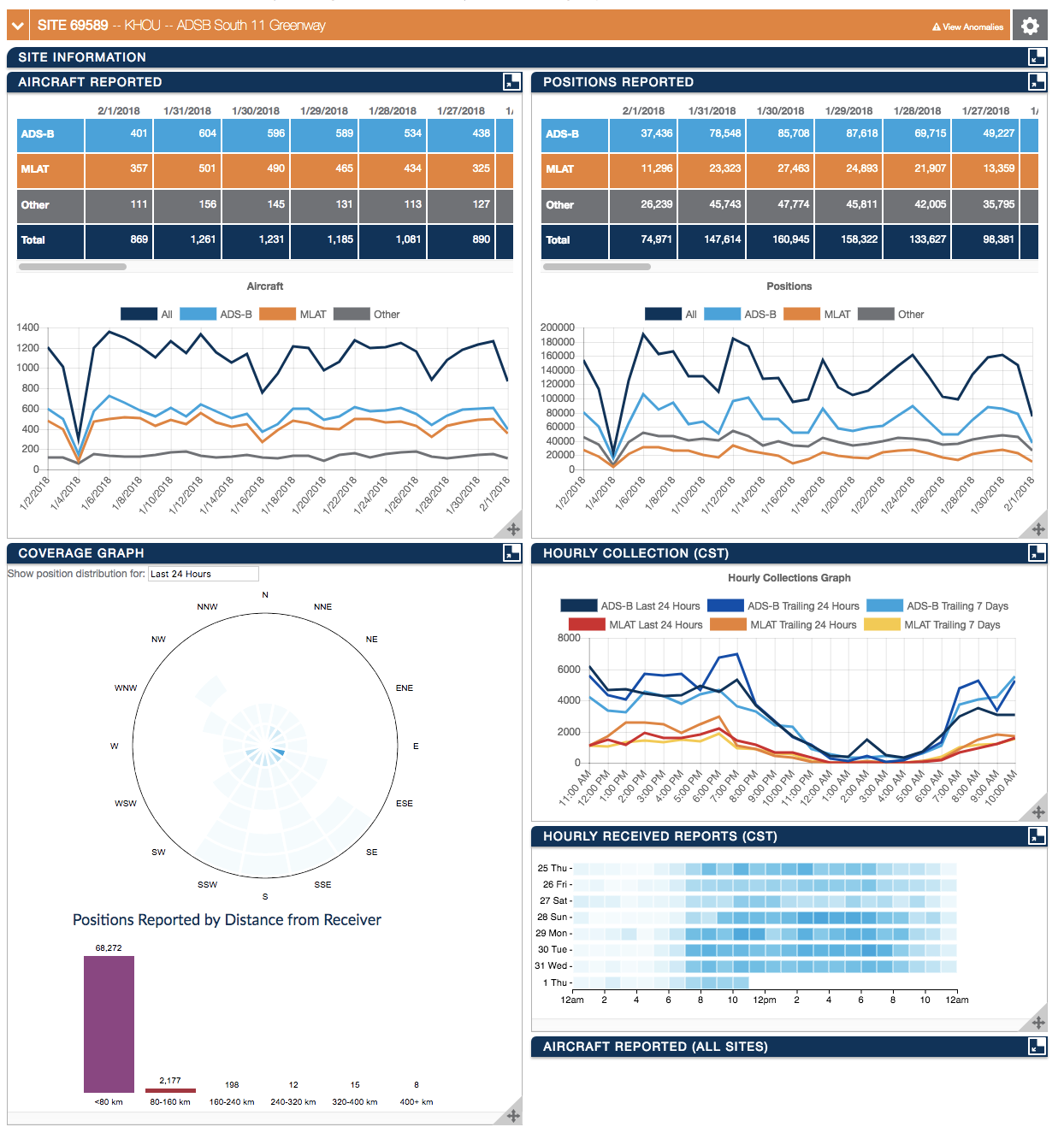
في حالة مرور 5 دقائق، ولم يتم عرض جهازك حسبما طلبت، فجرب إعادة بدء تشغيل الجهاز، وإذا استمر الحال هكذا، فقم بالتأكد من صحة إعدادات الواي فاي (إذا كنت تستخدم تقنية الواي فاي). وأخيراً، اتصل بنا عبر البريد الإلكتروني ADSBsupport@FlightAware.com. افحص صفحة الإحصائيات الخاصة بك (الرابط أدناه) لتأكيد ما قمت بطلبه.